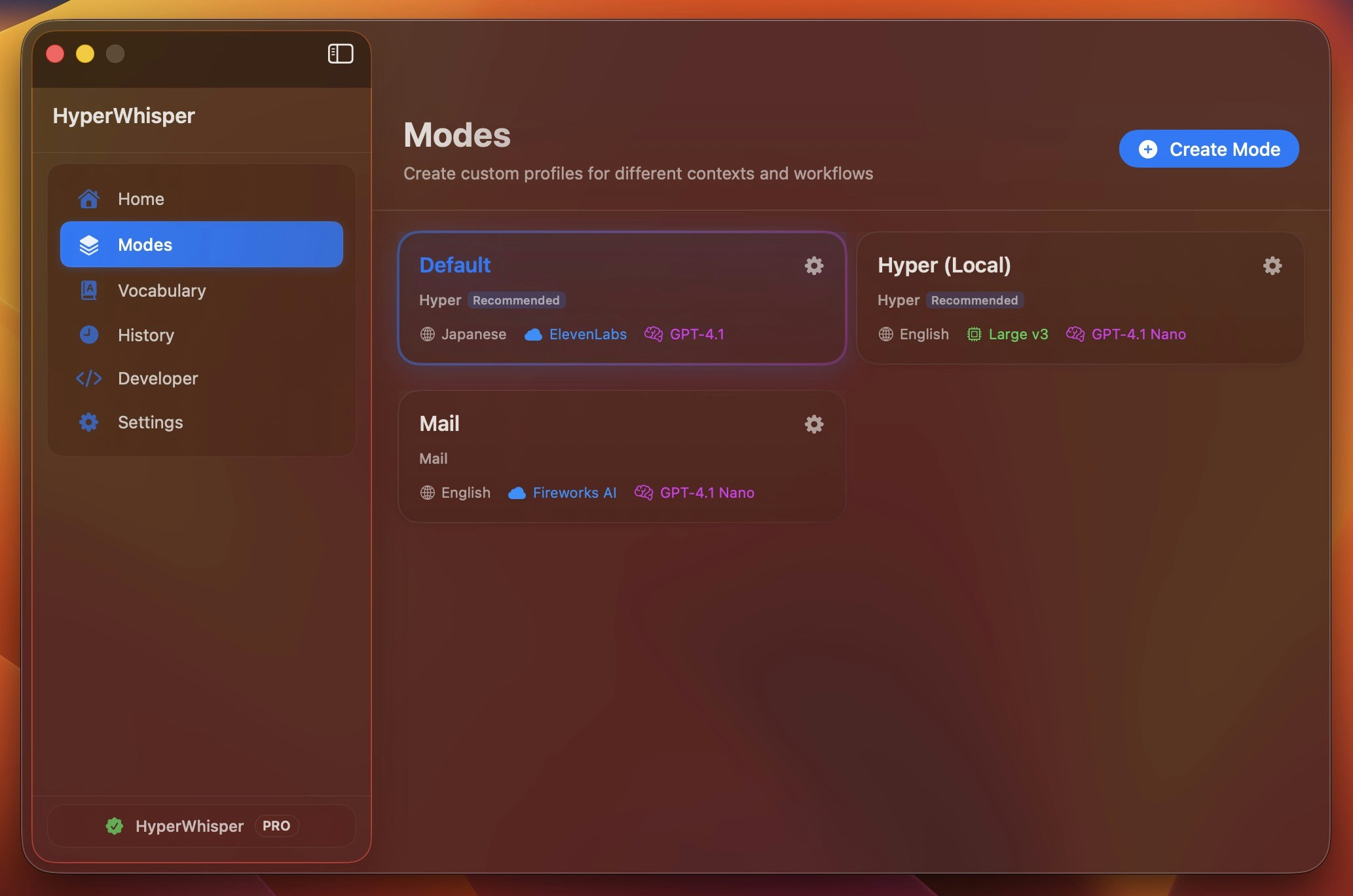
Skip to main contentHyperWhisper uses modes to control how your voice is transcribed and formatted. Each mode stores your preferred language, transcription model, and text formatting options. This guide will help you set up and customize modes for different use cases.
Choose a Preset
HyperWhisper includes several built-in presets for common use cases:
- Hyper (recommended) – Balanced formatting with smart punctuation and vocabulary replacements
- Voice to text – Raw transcription with no AI post-processing
- Message, Mail, Note, Meeting – Optimized for specific contexts like emails, notes, or meeting minutes
- Custom – Create your own formatting rules with a custom prompt
Each preset automatically configures formatting rules. Select Custom to write your own instructions for domain-specific needs.
Select Language and Model
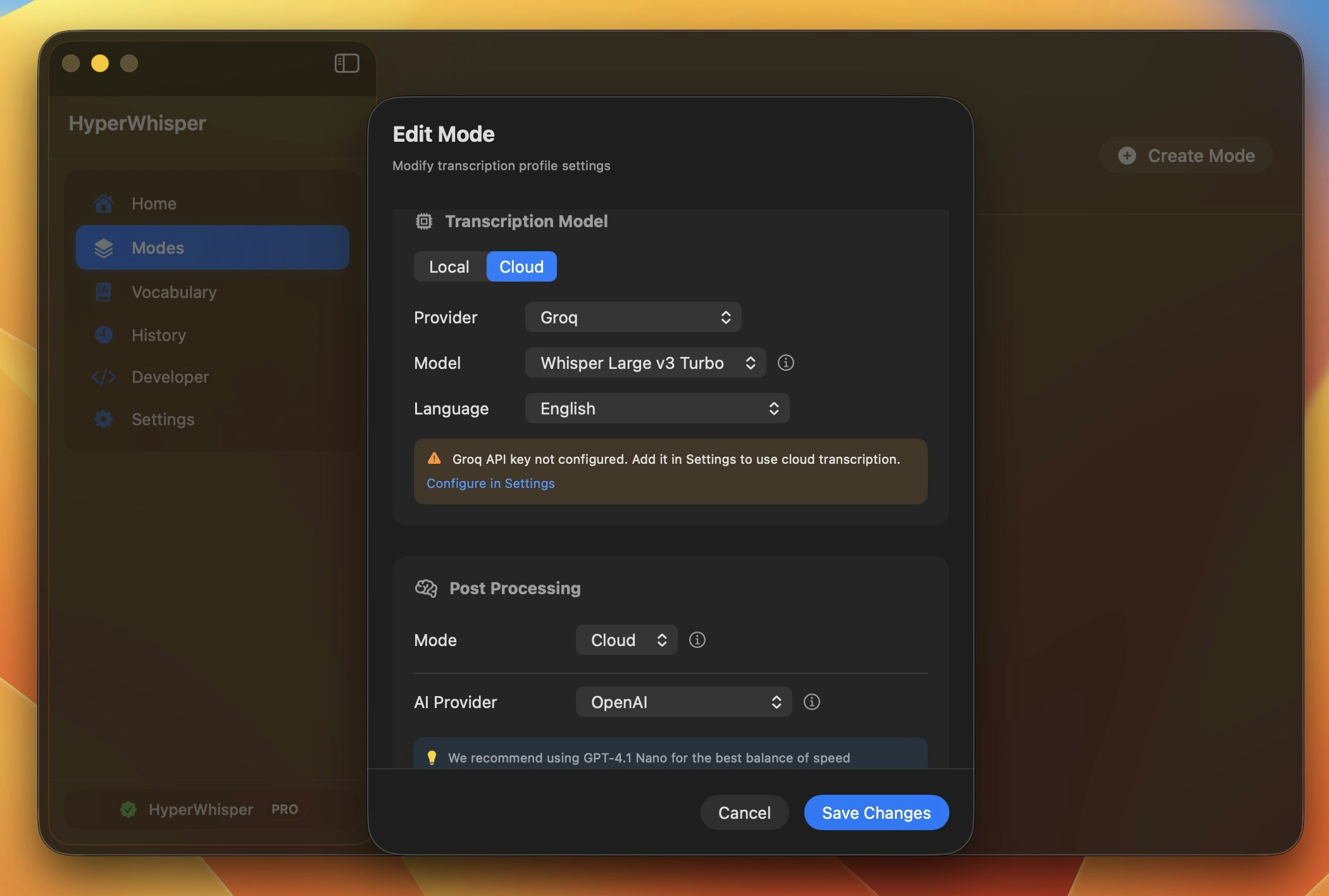
Language: Choose your language or use auto-detect. Note that some models only support English.
Local Models: Download Whisper or Parakeet models for offline transcription. Larger models provide better accuracy but require more disk space.
Cloud Models: Use cloud providers like OpenAI, Groq, Deepgram, AssemblyAI, ElevenLabs, or Mistral for faster processing. You’ll need to add your API keys in Settings → API Keys.
AI Post-Processing
Choose how your transcripts are formatted:
- Off – Raw transcription with basic punctuation
- Cloud – Enhanced formatting using OpenAI, Anthropic, Gemini, or Groq
- Local – Process text locally with downloaded Gemma models
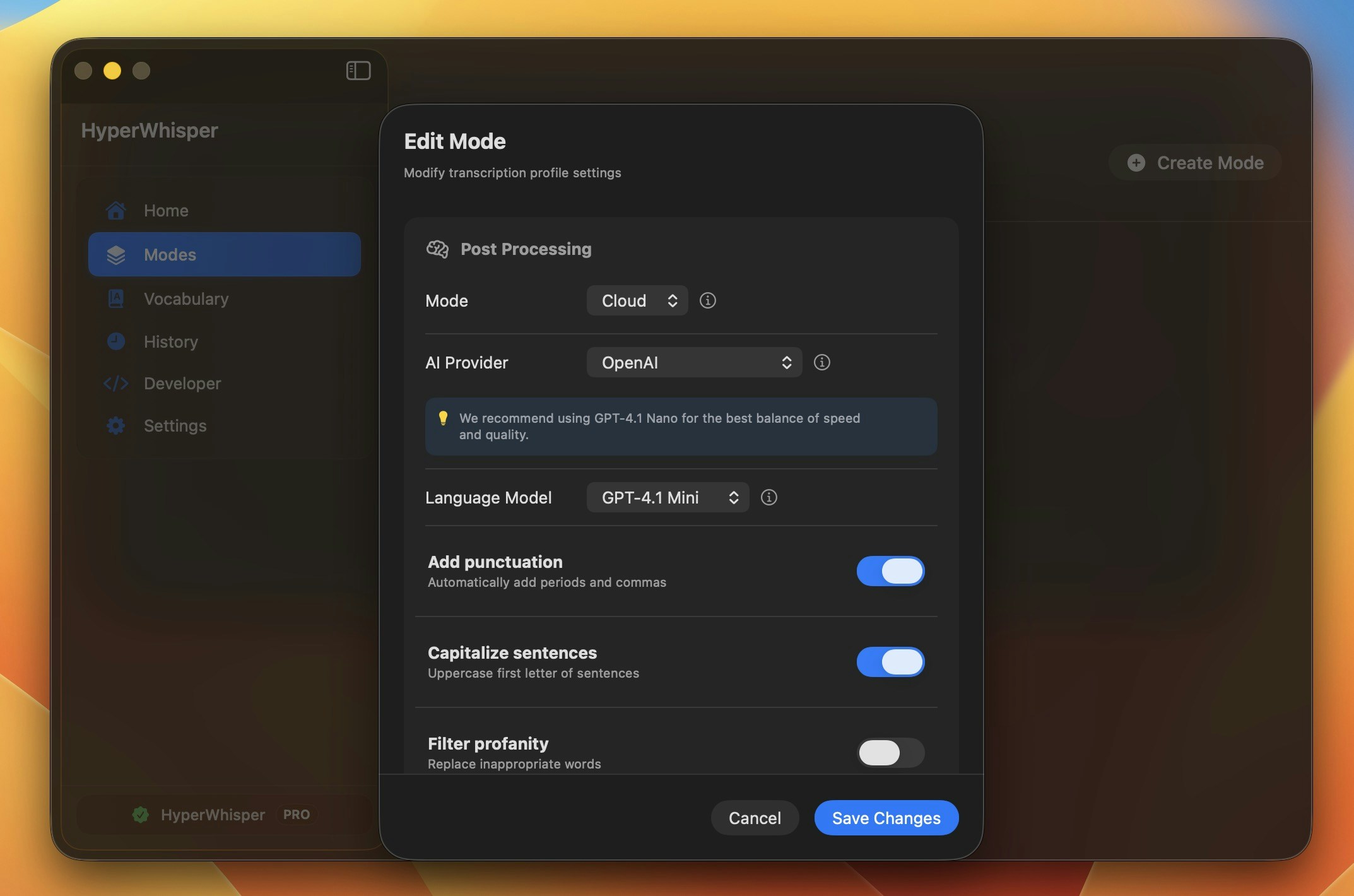
- Punctuation – Add commas, periods, and basic punctuation
- Capitalization – Automatic sentence case
- Profanity filter – Replace explicit words in transcripts
